Arduino Tutorial: KY-012 Active Buzzer Module
Abstract
Learn how to use the KY-012 Active Buzzer Module with Arduino. This module contains an internal oscillator, allowing it to generate a loud, fixed-frequency tone simply by applying a HIGH digital signal. This tutorial focuses on using digital output pins to create timed alert sounds and simple beeping sequences.
1. Introduction
The KY-012 is an Active Buzzer, meaning it functions as a simple digital output device. Unlike a passive buzzer (which requires the tone() function and a specific frequency), the active buzzer only needs 5V (a HIGH signal) to instantly generate its fixed-frequency sound. This makes it ideal for immediate, simple alerts and alarm systems.
In this episode, you’ll learn:
- The difference between Active and Passive buzzers.
- How to safely wire the module as a digital output device.
- How to use digitalWrite() to turn the sound ON and OFF.
- How to create a simple alarm pulse using delays.
This project adds the capability of audible feedback to your Arduino projects.
2. Prerequisites
Make sure you have:
- An Arduino Uno or compatible board.
- One KY-012 Active Buzzer Module.
- Jumper Wires.
- Arduino IDE
3. Wiring and Setup for Arduino
The KY-012 module has three pins and requires a digital signal to activate.
Step 1 – Identify Pins
The module typically has three pins: Signal (S or OUT), VCC (+), and Ground (− or GND).
Step 2 – Connect the Module
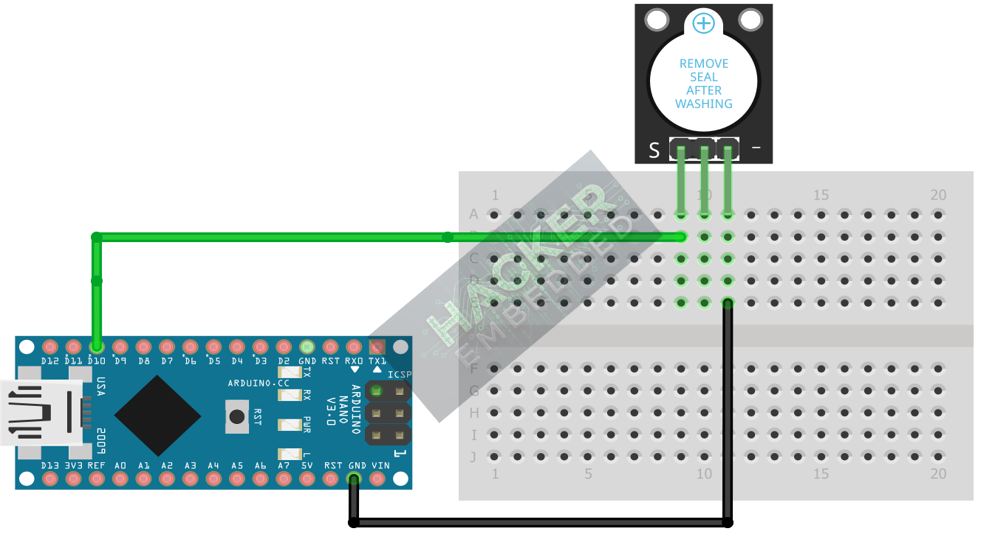
Wire the module to the Arduino as follows:
- Connect the – / GND pin of the KY-012 to the GND pin on the Arduino.
- Connect the + / VCC pin of the KY-012 to the 5V pin on the Arduino.
- Connect the S / Signal pin of the KY-012 to Arduino Digital Pin 10.
Note: The VCC pin is often connected to the Arduino’s 5V to power the circuit, while the S pin is used to gate the power to the buzzer element itself via an integrated transistor, or vice-versa, depending on the module. For the KY-012, setting the S pin HIGH typically activates the buzzer.
This image was created with Fritzing
Step 3 – Initialize Pin Mode
The signal pin must be initialized as an OUTPUT in the setup() function:
pinMode(10, OUTPUT);
4. Writing Simple Alert Code
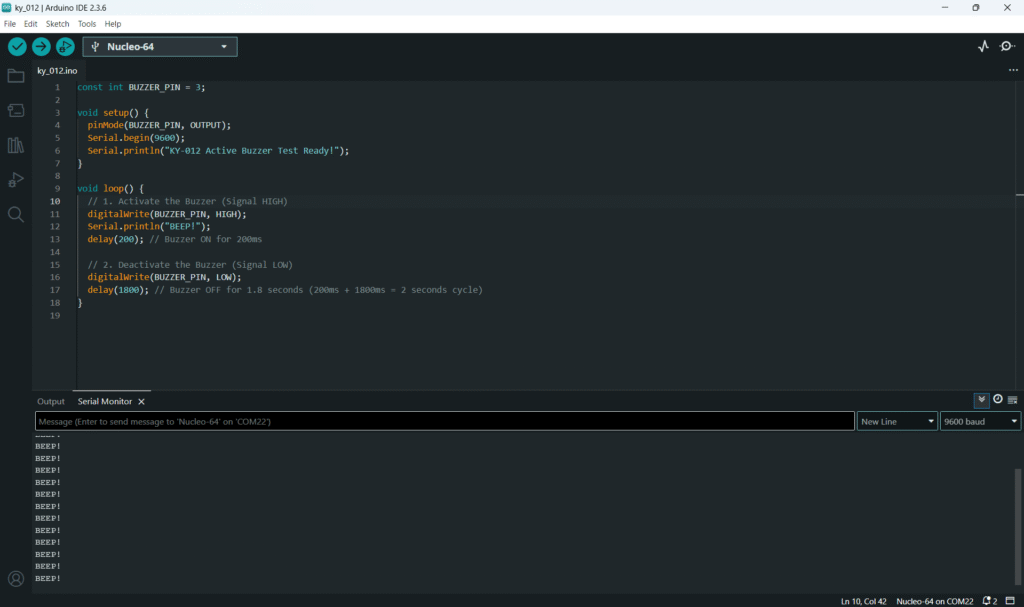
Open main.ino and implement the following code. This code will generate a short beep every two seconds.
Code Explanation
- digitalWrite(BUZZER_PIN, HIGH): Sends 5V to the signal line, triggering the internal oscillator within the active buzzer and producing the fixed-frequency tone.
- digitalWrite(BUZZER_PIN, LOW): Stops the 5V signal, effectively silencing the buzzer.
- delay(): Used to control the duration of the sound and the silent period between beeps.
5. Creating a Pulse Sequence
For alarm systems, you often need a sequence of pulses. This can be easily implemented using a function and loops.
6. Uploading and Testing the Project
Step 1 – Build
Click the Verify button (checkmark icon) in the Arduino IDE to compile the sketch.
Step 2 – Upload
- Connect your Arduino board via USB.
- Select the correct board and COM port.
- Click the Upload (arrow icon) button.
Step 3 – Test
- If you ran the code from Section 4, the buzzer should produce a 200ms beep every two seconds.
- If you ran the code from Section 5, the buzzer should produce a triple, rapid beeping sound every five seconds.
7. Hands-On Lab Recap
You’ve learned:
- The simple ON/OFF activation of an Active Buzzer using the internal oscillator.
- How to configure a Digital pin as output for sound alerts.
- How to use digitalWrite() and delay() to control the duration of the tone.
This concludes our series on basic digital output and feedback devices.
8. Common Issues & Fixes