
ESP32: How to display PNG images from FLASH memory in a WebServer

ESP32 Tutorial: Web Server  Displaying PNG Images from Flash Memory

Abstract

This tutorial explains how to serve a PNG image directly from the ESP32’s Flash Memory (specifically, the program memory, not the filesystem) via a web server. To achieve this, the binary data of the PNG image must first be converted into a C/C++ byte array and embedded directly into the sketch. The ESP32 Web Server then serves this byte array with the correct image/png MIME type.

1. Introduction to Serving Embedded Images

When building a user interface for an ESP32 web server, incorporating visual elements like logos, icons, or status images is essential. While larger files are typically stored in a file system like SPIFFS or LittleFS, smaller, critical static assets can be more efficiently and reliably served by embedding them directly into the program’s Flash Memory.

This intermediate-level technique bypasses the complexity and overhead of file system management entirely. Instead, the binary data of an image—in this case, a PNG file—is converted into a C/C++ byte array and compiled right into the sketch alongside your code. This method ensures the assets are always available and reduces dependencies.

This tutorial outlines the process for achieving this:

  1. Conversion: Transforming a standard .png file into a const unsigned char array and an accompanying length variable.

  2. Embedding: Including this data directly within the Arduino sketch header.

  3. Serving: Configuring the ESP32 Web Server to serve this raw binary data using the correct image/png MIME type and the memory-efficient server.send_P() function, allowing the client browser to seamlessly display the image using a standard HTML <img> tag.

2. The Conversion Process: PNG to C Array

Since we are storing the image directly in the ESP32’s program space (Flash) instead of a file system (like LittleFS/SPIFFS), the binary data must be represented as a C array.

2.1 Step-by-Step Conversion (External Tool)

You will need an external tool to convert the PNG file (image.png) into a C array (image.h).

2.1.1 Use an Online Converter or Command Line:

Use a tool like xxd (common on Linux/macOS) or an online tool specifically designed to convert binary files to C arrays.

xxd command:
Bash
xxd -i image.png > image_data.h

Output File (image_data.h) Content: The resulting file will contain code similar to this:

unsigned char image_png[] = {

  0x89, 0x50, 0x4e, 0x47, 0x0d, 0x0a, 0x1a, 0x0a, 0x00, 0x00, 0x00, 0x0d,

  0x49, 0x48, 0x44, 0x52, 0x00, 0x00, 0x00, 0x40, 0x00, 0x00, 0x00, 0x40,

  // … thousands more bytes …

  0x49, 0x45, 0x4e, 0x44, 0xae, 0x42, 0x60, 0x82

};

unsigned int image_png_len = 8192; // The size of the image in bytes

2.1.2 Save the Array

Copy the contents of the generated C array (image_png) and its length (image_png_len) into a new file named image_data.h in your Arduino sketch folder.

Change the array to be placed in FLASH instead of RAM, this can be done by adding the const: const unsigned char image_png[]

3. The ESP32 Arduino Sketch

The ESP32 sketch will include the generated header file and define a specific web handler to serve the image data as a raw response.

3.1 Libraries and Image Inclusion

				
					#include <WiFi.h>
#include <WebServer.h>

// Replace with your network credentials
const char* ssid = "YOUR_WIFI_SSID";
const char* password = "YOUR_WIFI_PASSWORD";

// --- Include the generated C array file ---
// Ensure 'image_data.h' is in the same folder as the sketch
#include "image_data.h" 

WebServer server(80);

// Global variables to hold the image data and size (from image_data.h)
// These variables are already defined in the included file:
// extern unsigned char image_png[];
// extern unsigned int image_png_len;


3.2 Image Handler Function

The key to serving the image correctly is sending the raw byte array and setting the Content-Type header to image/png. The PROGMEM macro is often used to ensure the array is stored efficiently in Flash memory.

				
					// Handler for serving the raw PNG image data
void handleImage() {
  // Set the Content-Type header to tell the browser it's a PNG image
  server.sendHeader("Content-Encoding", "identity"); // Prevent compression issues
  
  // Send the raw binary data
  server.send_P(200, "image/png", (const char*)image_png, image_png_len);
}

// Handler for the root page (HTML viewer)
void handleRoot() {
  server.send(200, "text/html", getHtmlPage());
}


3.3 HTML Generation

The HTML page simply uses a standard <img> tag that links to the specific endpoint (/logo.png) handled by the handleImage() function.

				
					String getHtmlPage() {
  String html = R"rawliteral(
<!DOCTYPE HTML>
<html>
<head>
  <meta name="viewport" content="width=device-width, initial-scale=1">
  <style>
    body { font-family: sans-serif; text-align: center; margin-top: 50px; background-color: #f8f9fa; }
    .container { background-color: #ffffff; padding: 30px; border-radius: 10px; box-shadow: 0 4px 12px rgba(0,0,0,0.1); display: inline-block; }
    h1 { color: #343a40; }
    img { border: 2px solid #007bff; padding: 10px; border-radius: 8px; max-width: 100%; height: auto; margin-top: 20px; }
  </style>
  <title>ESP32 Embedded Image</title>
</head>
<body>
  <div class="container">
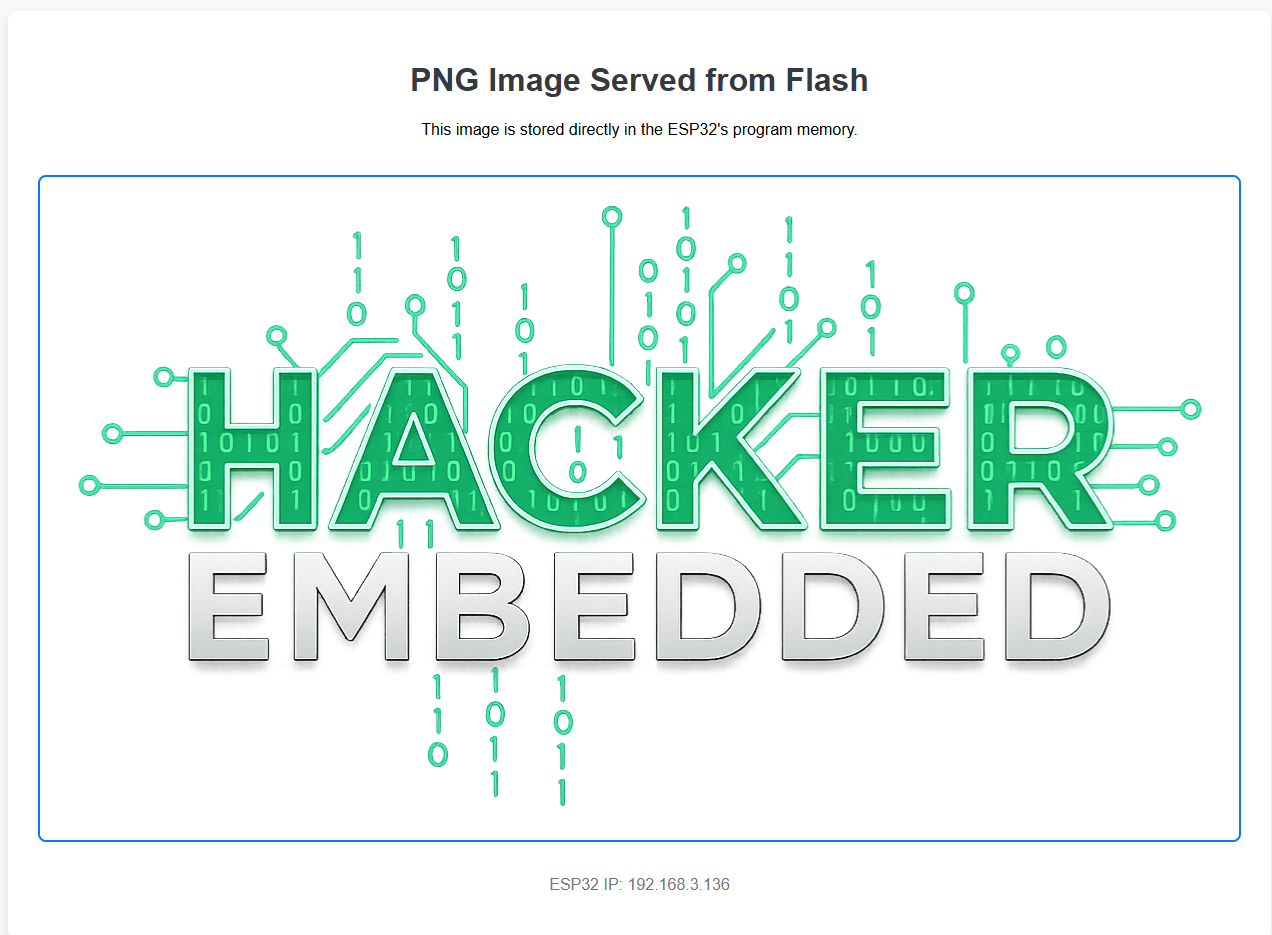
    <h1>PNG Image Served from Flash</h1>
    <p>This image is stored directly in the ESP32's program memory.</p>
    
    <img decoding="async" src="/logo.png" alt="Embedded PNG Image">
    
    <p style="margin-top: 30px; color: #6c757d;">ESP32 IP: IP_ADDRESS</p>
  </div>
</body>
</html>
)rawliteral";

  // Replace placeholders
  html.replace("IP_ADDRESS", WiFi.localIP().toString());

  return html;
}


3.4 Setup and Main Loop

				
					void setup() {
  Serial.begin(115200);
  
  // Connect to Wi-Fi
  WiFi.begin(ssid, password);
  Serial.print("Connecting to WiFi...");
  while (WiFi.status() != WL_CONNECTED) {
    delay(1000);
    Serial.print(".");
  }
  Serial.println("\nWiFi connected.");
  Serial.print("Web Server IP: ");
  Serial.println(WiFi.localIP());

  // Setup Web Server Routes
  server.on("/", HTTP_GET, handleRoot);
  // Route for the image request
  server.on("/logo.png", HTTP_GET, handleImage); 
  server.begin();
}

void loop() {
  server.handleClient();
}


4. Source Code

The entire code for an easier copy and paste:

				
					#include <WiFi.h>
#include <WebServer.h>
#include "image_data.h"

// Replace with your network credentials
const char* ssid = "YOUR_WIFI_SSID";
const char* password = "YOUR_WIFI_PASSWORD";

WebServer server(80);

// Global variables to hold the image data and size (from image_data.h)
// These variables are already defined in the included file:
// extern unsigned char logo_hacker_png[];
// extern unsigned int logo_hacker_png_len;

// Handler for serving the raw PNG image data
void handleImage() {
  // Set the Content-Type header to tell the browser it's a PNG image
  server.sendHeader("Content-Encoding", "identity"); // Prevent compression issues
 
  // Send the raw binary data
  server.send_P(200, "image/png", (const char*)logo_hacker_png, logo_hacker_png_len);
}

// Handler for the root page (HTML viewer)
void handleRoot() {
  server.send(200, "text/html", getHtmlPage());
}

String getHtmlPage() {
  String html = R"rawliteral(
<!DOCTYPE HTML>
<html>
<head>
  <meta name="viewport" content="width=device-width, initial-scale=1">
  <style>
    body { font-family: sans-serif; text-align: center; margin-top: 50px; background-color: #f8f9fa; }
    .container { background-color: #ffffff; padding: 30px; border-radius: 10px; box-shadow: 0 4px 12px rgba(0,0,0,0.1); display: inline-block; }
    h1 { color: #343a40; }
    img { border: 2px solid #007bff; padding: 10px; border-radius: 8px; max-width: 100%; height: auto; margin-top: 20px; }
  </style>
  <title>ESP32 Embedded Image</title>
</head>
<body>
  <div class="container">
    <h1>PNG Image Served from Flash</h1>
    <p>This image is stored directly in the ESP32's program memory.</p>
   
    <img decoding="async" src="/logo.png" alt="Embedded PNG Image">
   
    <p style="margin-top: 30px; color: #6c757d;">ESP32 IP: IP_ADDRESS</p>
  </div>
</body>
</html>
)rawliteral";

  // Replace placeholders
  html.replace("IP_ADDRESS", WiFi.localIP().toString());

  return html;
}

void setup() {
  Serial.begin(115200);
 
  // Connect to Wi-Fi
  WiFi.begin(ssid, password);
  Serial.print("Connecting to WiFi...");
  while (WiFi.status() != WL_CONNECTED) {
    delay(1000);
    Serial.print(".");
  }
  Serial.println("\nWiFi connected.");
  Serial.print("Web Server IP: ");
  Serial.println(WiFi.localIP());

  // Setup Web Server Routes
  server.on("/", HTTP_GET, handleRoot);
  // Route for the image request
  server.on("/logo.png", HTTP_GET, handleImage);
  server.begin();
}

void loop() {
  server.handleClient();
}


5. Hands-On Lab Recap

You have successfully embedded and served a binary image file from the ESP32’s Flash memory:

  • Conversion is Key: The PNG file must first be converted into a C/C++ byte array (e.g., using xxd).
  • Flash Storage: The array is placed in a header file (h) and compiled directly into the ESP32’s program space (Flash).
  • MIME Type: The web server handler for the image URL (/logo.png) is crucial. It must set the correct Content-Type: image/png header before sending the raw bytes using send_P().
  • <img> Tag: The HTML page references the image using a standard <img src=”/logo.png”> tag, relying on the ESP32 to intercept and serve the corresponding data.
Leave a Comment

Your email address will not be published. Required fields are marked *

Scroll to Top