Getting started with Zephyr and STM32! Learn how to create your own Zephyr Application with STM32
Abstract
Zephyr is a open-source and vendor neutral proven RTOS ecosystem, with a small memory footprint, usually less than 8KB FLASH and 5KB RAM and it’s made to be scalable, from small MCUs to complex multi-core systems. In this article series we’ll explore the Zephyr with STM32.
1. Introduction
2. Cloning the Example Application
First, make sure the Zephyr virtual environment is activated. If it is active, you should see (.venv) at the beginning of your terminal prompt.
2.1 For Linux Ubuntu users
If the virtual environment is not active and you created the alias, simply run:
If you did not create the alias, run:
2.2 For Windows users
2.3 Cloning
Regardless of the OS, next, clone the example application:
Navigate to the application folder and open it in Visual Studio Code:
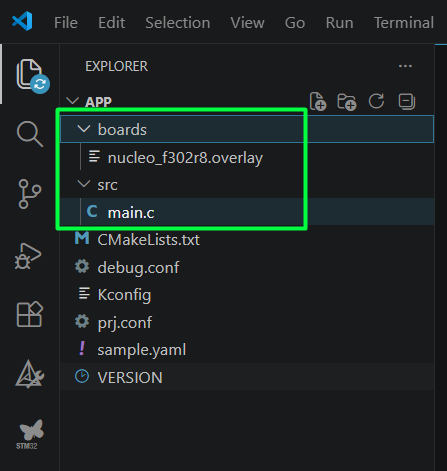
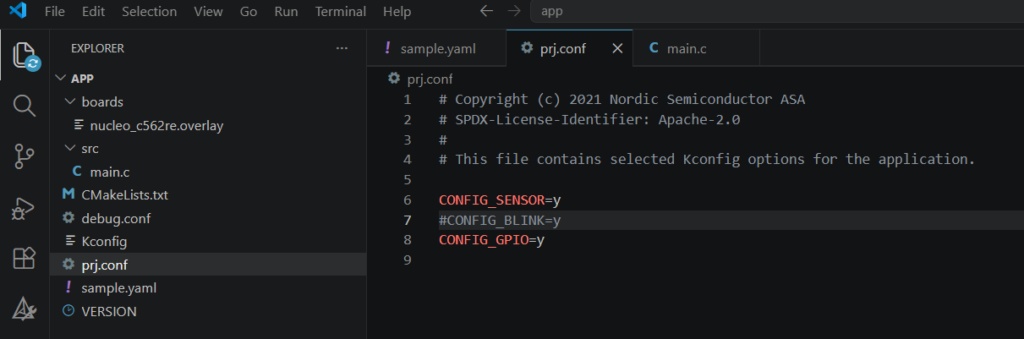
You should see a project structure similar to the following:
3. Project Structure
The most important files are:
- src/main.c – Contains the application’s source code.
- prj.conf – Stores the project’s Kconfig options.
- sample.yaml – Defines information about the sample, including the supported boards.
- boards/ – Contains board-specific files, such as DeviceTree overlay files.
- CMakeLists.txt – Defines how the project is built.
- Kconfig – Defines the application’s configuration options.
4. Configuring the Project for Your Board
Rename the Overlay File
Inside the boards folder, rename the overlay file to match your board name:
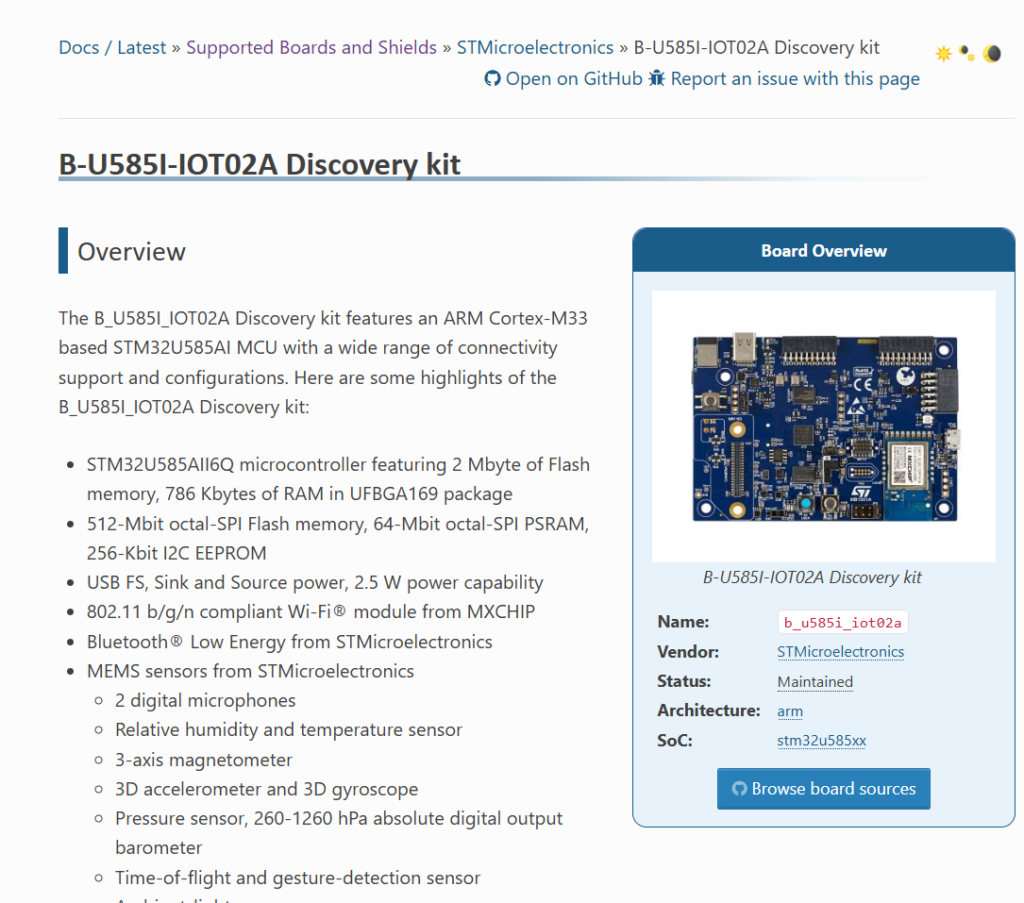
b_u585i_iot02a.overlay
Modify sample.yaml
Open sample.yaml and update the integration_platforms section:
integration_platforms:
– custom_plank
– b_u585i_iot02a
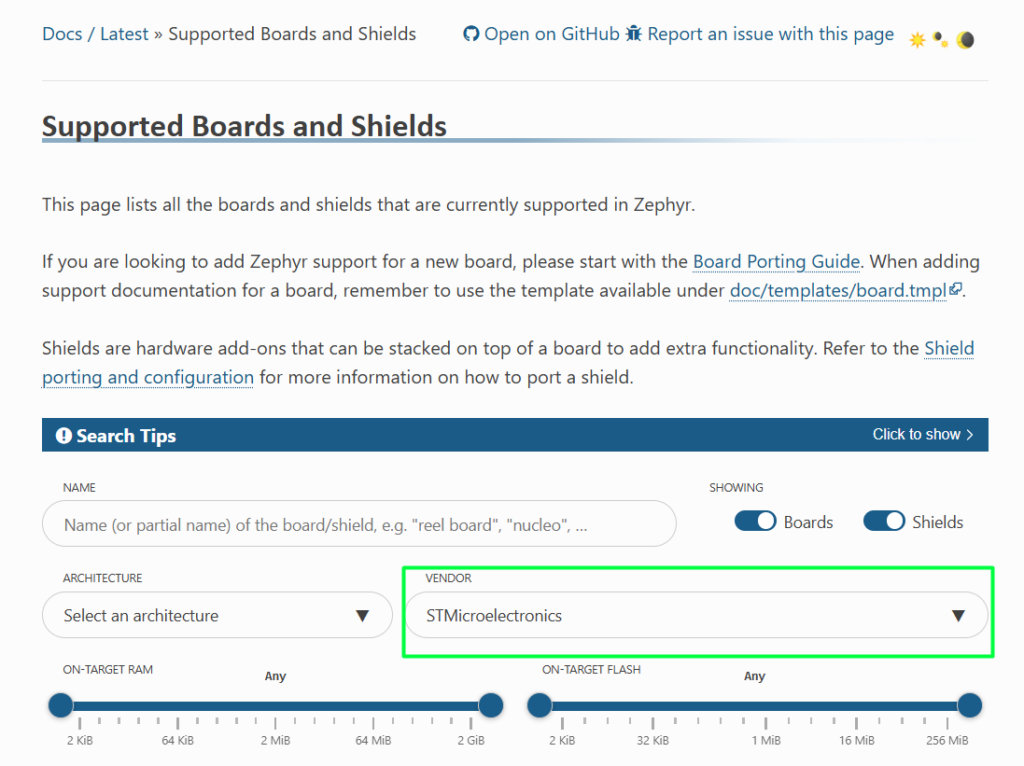
If you are using a different board, replace b_u585i_iot02a with your board’s Zephyr name.
Modify prj.conf
Open prj.conf.
Remove:
CONFIG_BLINK=y
and replace it with:
CONFIG_GPIO=y
This enables the GPIO driver, which is required for controlling the LED.
5. Creating the Blink Application
Delete everything inside src/main.c and replace it with the following code:
Understanding the Code
#include <zephyr/kernel.h>
Includes the Zephyr kernel API, which provides functions such as k_sleep().
#include <zephyr/drivers/gpio.h>
Includes the GPIO driver API.
#define LED_NODE DT_ALIAS(led0)
Retrieves the led0 alias defined in the board’s DeviceTree. This makes the application portable because it does not depend on a specific GPIO pin.
static const struct gpio_dt_spec led =
GPIO_DT_SPEC_GET(LED_NODE, gpios);
Creates a GPIO specification from the DeviceTree. This structure contains all the information needed to configure and control the LED.
gpio_pin_configure_dt(&led, GPIO_OUTPUT_ACTIVE);
Configures the LED pin as an output and initially sets it to the active state.
while (1)
Creates an infinite loop so the application keeps running.
gpio_pin_toggle_dt(&led);
Toggles the LED state. If it is ON, it becomes OFF, and vice versa.
k_sleep(K_MSEC(200));
Waits for 200 milliseconds before toggling the LED again.
6. Building and Flashing the Application
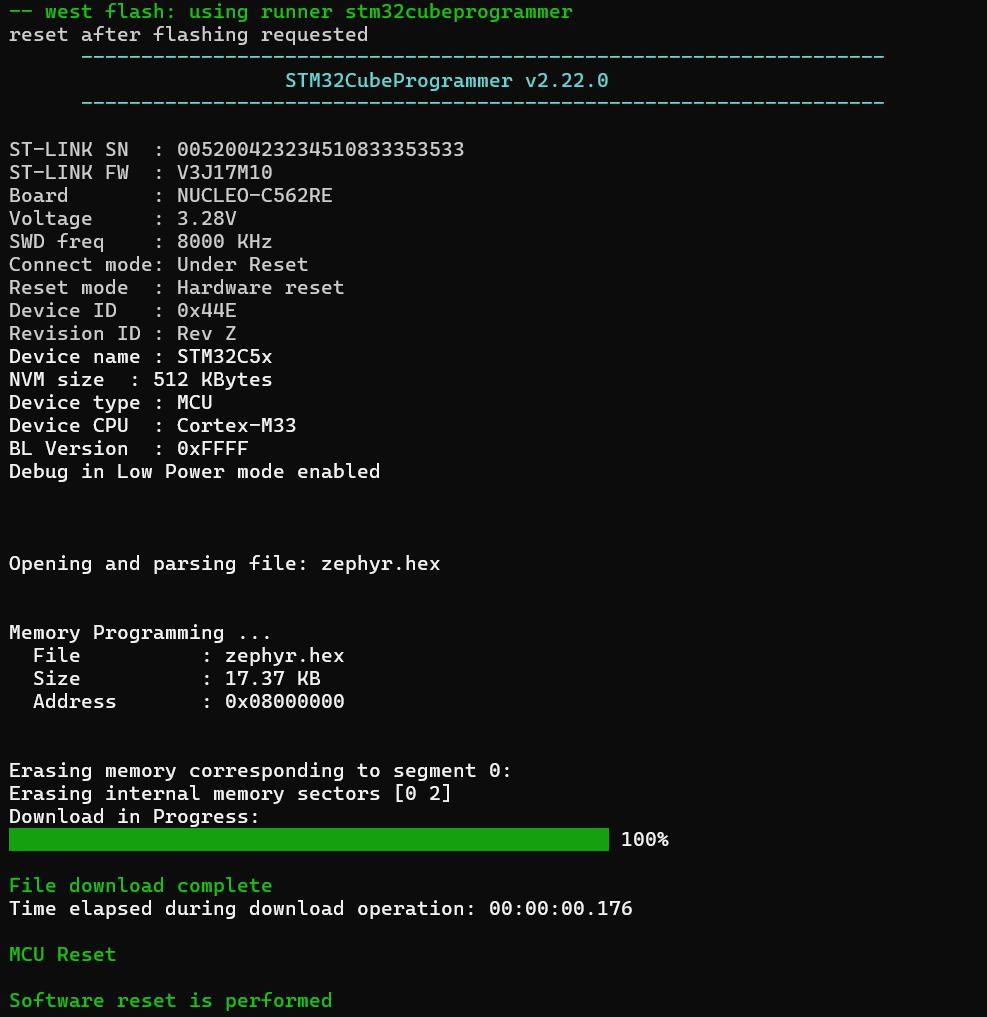
Program the built code to the board:
Your custom Blink LED application should now be running.
Tips and Tricks – Creating a Build Alias
Since you will build the application frequently, creating a shell alias can save time.
Open your .bashrc file:
Add the following line at the end:
Save the file and reload it:
source ~/.bashrc
From now on, you can build your project simply by typing: build
Tips and Tricks – How to change the board
If you are using a different board, replace b_u585i_iot02a with your board name. In this case, we’ve used the new nucleo_c562re
You can reflash the project on the new board using the same command:
You should now see your LED blinking at 200ms, proving it all worked as expected.
Happy Coding =)