STM32 Migration Guide: From STM32CubeIDE to VS Code Workflow
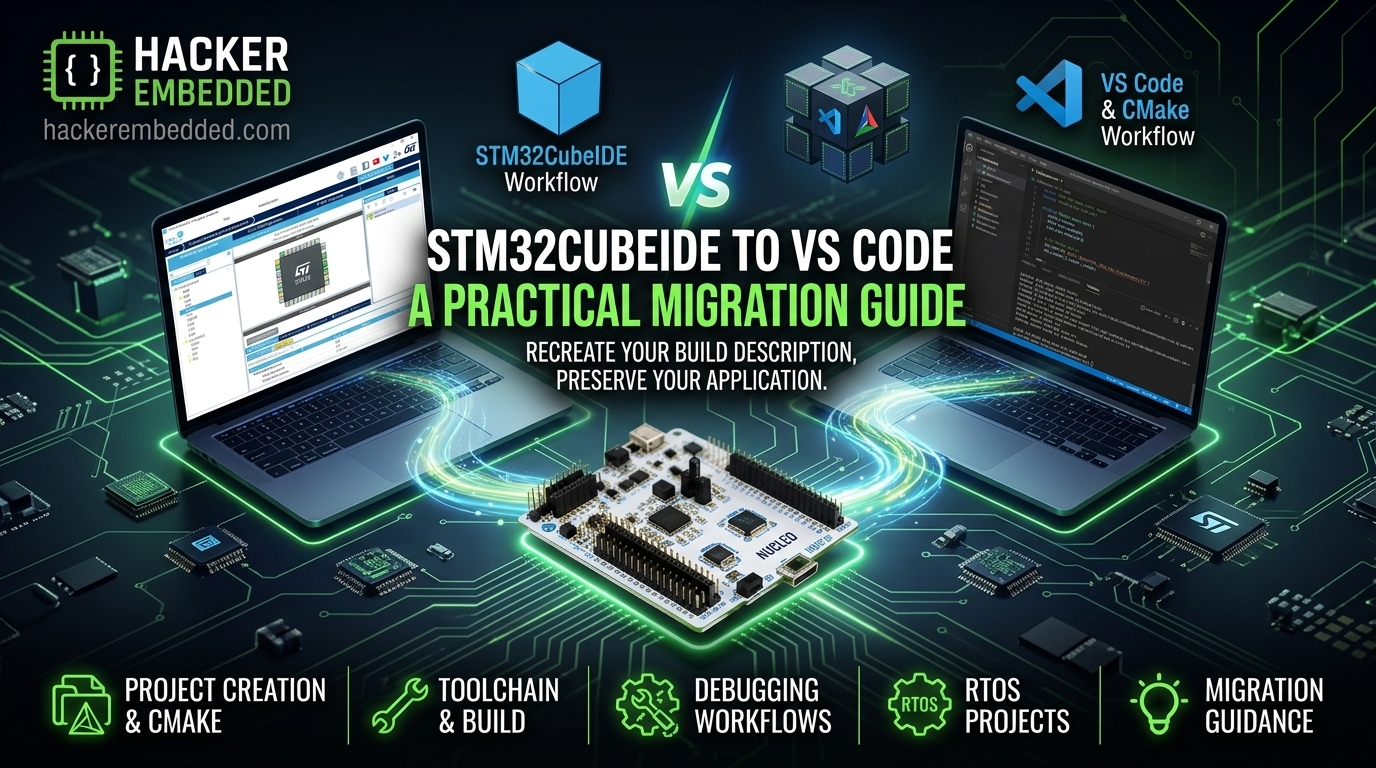
From STM32CubeIDE to VS Code: A Practical STM32 Migration Guide
For many years, STM32 developers started a new project by opening STM32CubeIDE, creating an .ioc file, generating the project and building everything inside the IDE.
That workflow still works! Not sure if the message was clear, but STM32C5 is supported by STM32CubeIDE as well.
It seems that ST will continue to focus on VS Code moving forward and that will make the STM32 development ecosystem to change significantly in the future, so while there is clearly no immediate need to change, let’s get prepared for that.
ST now provides a dedicated STM32 solution around Visual Studio Code, CMake and STM32 tools, reducing the dependency on STM32CubeIDE for the edit-build-debug workflow. The current STM32CubeIDE for Visual Studio Code documentation includes project creation, CMake, toolchains, build, debug, RTOS projects and migration guidance.
So instead of asking if you must change, the better question is: How do I migrate an existing STM32 project to a modern VS Code workflow without breaking my firmware?
Let's go through it step by step.
STM32CubeIDE vs VS Code
The traditional workflow looks like this:
STM32CubeMX
      ↓
STM32CubeIDE project
      ↓
.cproject / Makefiles
      ↓
Build
      ↓
Debug
A modern CMake-based workflow looks more like:
STM32CubeMX
      ↓
CMake project
      ↓
VS Code
      ↓
CMake
      ↓
Compiler
      ↓
Debugger
The important difference is that the IDE is no longer the center of the build system and, of course, you can use either STM32CubeMX with any STM32 series OR the new STM32CubeMX2 with the STM32C5 series for now.
CMake becomes the project description.
Why move to VS Code?
There are several reasons. The most obvious one is agentic AI integration, despite the current lack of MCP server for the STM32 and the similar points that are now available on other vendors (NXP for example), it is just a matter of time until the STM32 is matched with similar offers.
1. Better editor experience
VS Code provides:
- powerful code navigation
- extensions
- Git integration
- terminal integration
- multiple languages
- customizable workflows
2. CMake becomes explicit
Instead of hiding the build system behind an IDE project, you can inspect:
CMakeLists.txtCMakePresets.json- toolchain files
This makes the build configuration easier to understand and automate.
3. IDE independence
A CMake project is not tied to one IDE. The same project can potentially be opened from:
- VS Code
- CLion
- command line
- CI systems
- other CMake-compatible environments
1. ST's VS Code ecosystem
ST's newer VS Code solution is built around several components. Conceptually:
STM32CubeMX or MX2
      ↓
CMake project
      ↓
STM32 VS Code tools
      ↓
CMake / Ninja
      ↓
GCC compiler (or other)
      ↓
Debugger (ST extension or the good old Cortex Debug one)
ST's VS Code extension was specifically redesigned so that STM32CubeMX could generate native CMake projects without depending on STM32CubeIDE.
The current documentation also includes CMake presets, toolchains, build and debug workflows.
2. Understand your existing project
Before migrating anything, inspect the existing STM32CubeIDE project. Look for:
Core/Drivers/Middlewares/startup_xxx.sSTM32xxx_FLASH.ld.ioc.cproject.project
Also identify Middleware and other unique settings, such as:
- FreeRTOS?
- USB?
- TouchGFX?
- LWIP?
- File system?
- Third-party libraries?
- Custom linker script?
- Post-build scripts?
This is important because migrating the build system is different from migrating the application. Your application code should remain mostly independent of the IDE.
2.1 What about existing projects?
This is where things become more interesting. A project created using the traditional STM32CubeIDE workflow may contain:
.project.cprojectMakefile- STM32CubeIDE metadata
A CMake-based project uses:
CMakeLists.txtCMakePresets.json- toolchain files
These are fundamentally different build descriptions. Therefore, don't think of migration as:
"Convert .cproject to .vscode."
Think of it as:
"Recreate the build description using CMake while preserving the application."
It is worth mentioning that STM32CubeIDE extension has this magic option, called "Convert Eclipse STM32CubeIDE project".
The modern CMake workflow also distinguishes tool-owned/generated files from user-owned project files. ST recommends treating generated files as outputs of the configuration process and keeping user-owned files under source control.
2.2 Generate a CMake project
Since your STM32CubeMX version supports CMake generation, configure the project accordingly directly from it. The goal is to obtain something similar to:
MyProject/
│
├── Core/
├── Drivers/
├── Middlewares/
├── cmake/
├── CMakeLists.txt
├── CMakePresets.json
├── startup_stm32xxx.s
├── STM32xxx_FLASH.ld
└── MyProject.ioc
The exact structure depends on the MCU and configuration.
2.3 Understand CMakePresets.json
One of the most important files is CMakePresets.json. It can define configurations such as:
For example:
-
Debug:
- optimization:
-Og
- debug symbols
- assertions
-
Release:
- optimization:
-O2
- reduced debug information
The VS Code STM32 workflow uses CMake presets to select the configuration used for build and debug. An interesting note is that MX2 only creates the Debug preset, while MX creates the usual two presets (debug and release).
2.4 Configure CMake
After opening the project, VS Code will configure the CMake project. Conceptually:
CMakeLists.txt
      +
CMakePresets.json
      +
Toolchain
      ↓
CMake configure
      ↓
Build files
If configuration fails, don't immediately blame VS Code. Look at:
- compiler path
- toolchain file
- CMake version
- Ninja
- STM32 tools
- environment variables
Once CMake is configured: Build 🙂 this will invoke the configured toolchain. You should see something similar to:
[1/10] Building C object ...
[2/10] Building C object ...
...
[10/10] Linking executable
The final result should include the .elf file, but with a simple post-build the .hex or .bin can be added as well.
2.5 Debugging
VS Code can also launch a Cortex-M debugging session. The typical workflow is:
Build
  ↓
Connect ST-LINK
  ↓
Start Debug
  ↓
Breakpoints
  ↓
Step
  ↓
Inspect registers
The current STM32CubeIDE for VS Code documentation includes dedicated debugging support and workflows. One thing that is relevant to mention is that ITM/SWO is not yet supported by ST’s extension, so if your application requires it, use Cortex Debug extension to get that done.
Conclusion
The biggest conceptual change is this: The IDE is the project. The new approach is more towards: the project is the source code + build system.
VS Code becomes the development environment around it. CMake describes the build, which can be painful and a steep learning curve to get used to it and A LOT of manual editing until it works as intended, but since it is textual based, GenAIs are there for the rescue.
Naturally, Git tracks the source and the compiler produces the binary. The debugger talks to the MCU and you have different flavors at your disposal, including Cortex Debug extension, which has more depth and features than the current STM32CubeIDE one.
For new projects, this approach is worth learning. For existing projects, migrate carefully and incrementally.
Related Hacker Embedded Articles